This project utilizes vector graphics to design interface elements and develop a visual aesthetic for an “audio player” app, like Spotify. Vector graphics are crucial for this type of design and iteration, as the format allows for more streamlined experimentation and flexible edits, as well as pixel-perfect sizing and vector text.
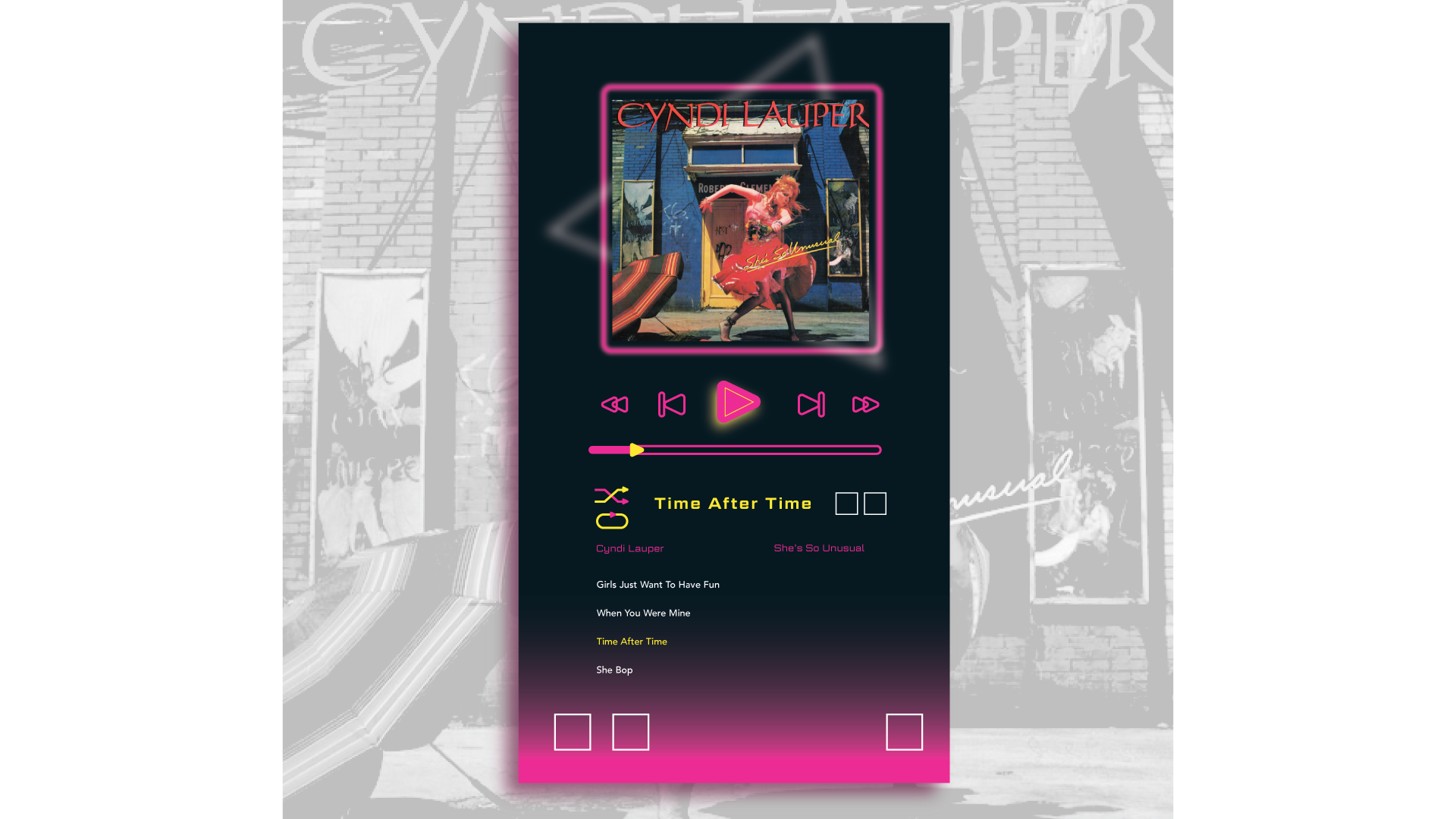
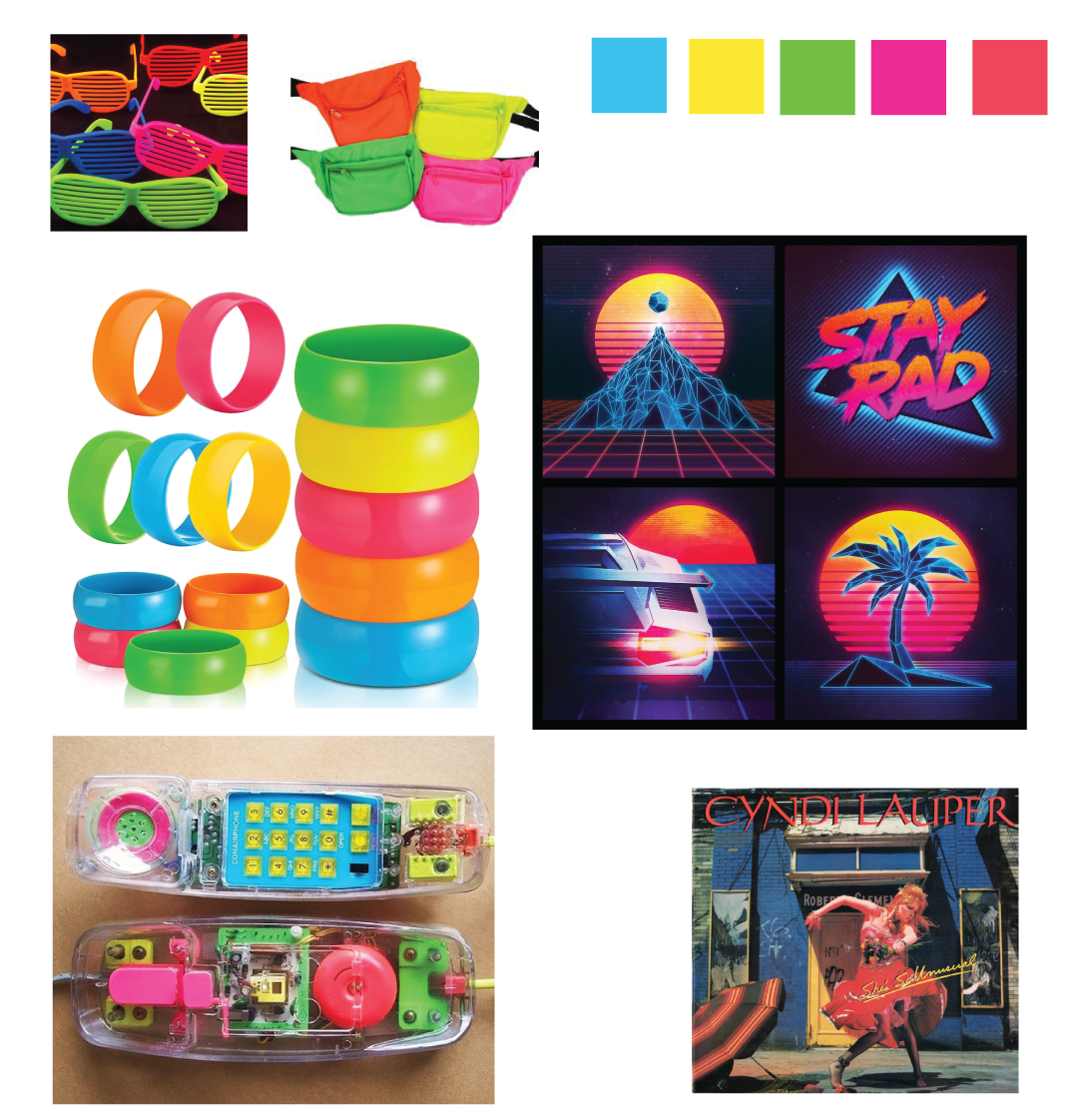
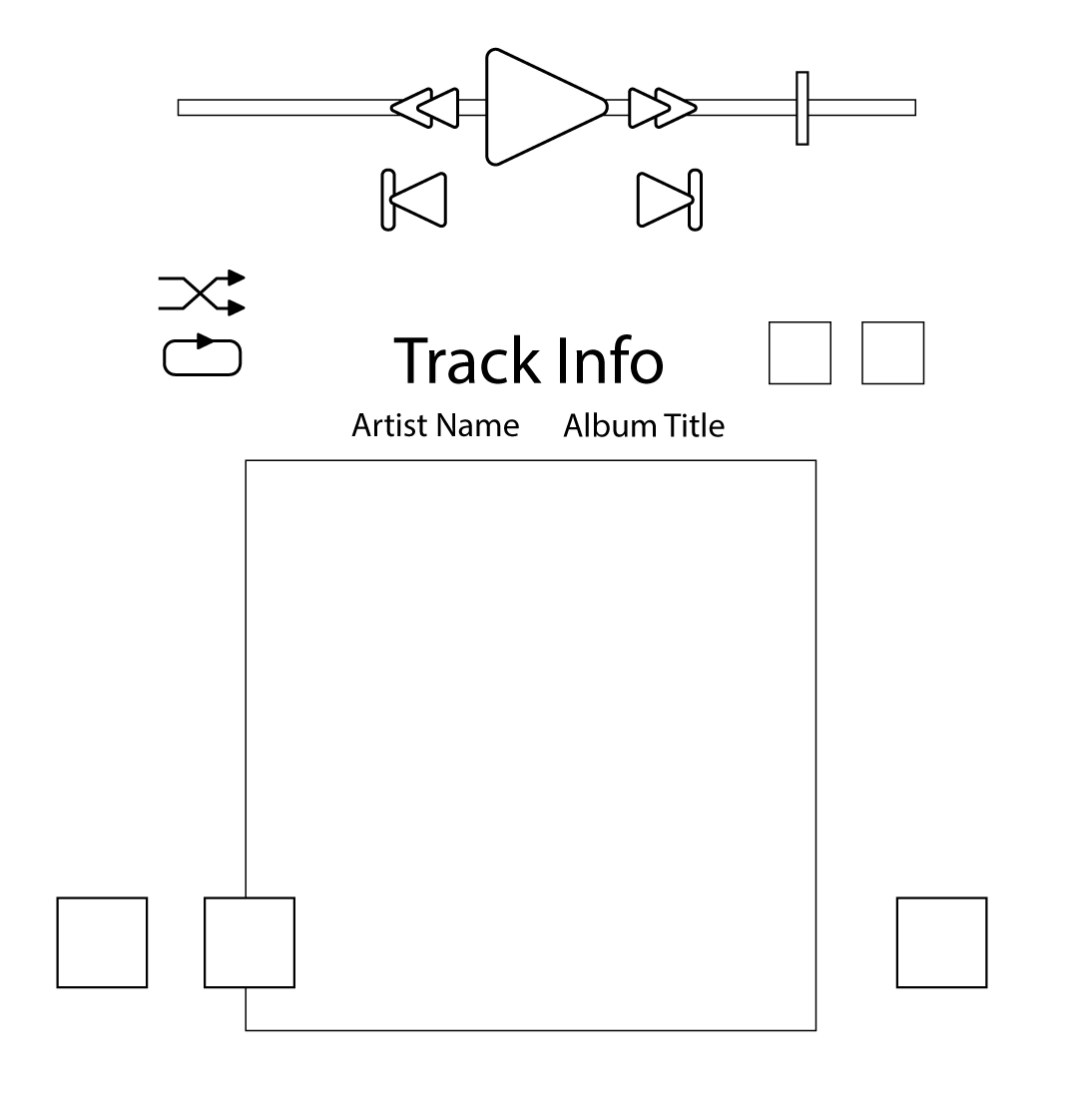
Description
Use a vector graphics program like Adobe Illustrator to manually design unique symbols, icons, textures, and other UI components to create an interface for a simple audio app. Design should be driven by both functionality, and also an intentionally defined visual aesthetic based on a a specific musical genre, performer/artist and/or album. This aesthetic could include references to visuals associated with the chosen inspiration, as well as other audio and/or narrative references that tie to new visuals.
Specifics
Start with a mood board or collection of reference images to develop a set of colors and textures to incorporate into the design.
Design all buttons, icons, typographic elements, and other interface elements to work with the selected visual aesthetic.
Experiment with several wireframe layouts before deciding on the final composition.
Create two finalized UI designs - one main interface, and a different supporting interface such as a playlist screen, karaoke / lyrics page, video player, or a mini / pop-out player, etc.
Project Goals + Outcomes
Technically, this project covers working with vector editors to design layouts, UI elements, and typographic elements. While the final form is a digital app design, many of these fundamentals could be applied to things like data visualizations, book, zine and other text-heavy designs, inforgraphics, etc.
Creatively, this project explores assigning a specific visual aesthetic to an app or system that is usually driven by functionality and branding alone.
Programs + Tools Used
This project utilizes a vector graphics editor - such as Adobe Illustrator - in order to manually design a set of interfaces. While there are other apps that work specifically with UI/UX design and offer many more streamlined processes, tools and affordances, basic vector editors are still very useful for many aspects of UI/UX design, and can also be used for more bespoke, illustrative and/or expressive UI/UX designs, and/or as one tool for certain assets / development phases in a production pipeline.
Suggested Constraints
Work within a vector-native program only, such as Illustrator
Try to use the dimensions for a specific device in illustrator - vector graphics requires way less memory
Exported PNG files of visuals and designs should be should be minimum 1200 pixels tall if working with a vertical orientation, or 1200 wide if working with a horizontal orientation
Generative AI should not be used, including Generative Vector Tools or Auto Layout tools or “App Builders” - the point is to make something unexpected and expressive as well as functional
One album cover art graphic {that you did not design} can be incorporated into design, but it should not be a visual focal point
Suggested Rubric - 8pts Total
Project follows the basic instructions, including the use of a specific aesthetic - 2pts
Project includes the required number of symbols and other UI assets in the checklist, and these relate to the chosen visual aesthetic - 4pts
Second design - 2 pts
Alternative Aesthetic Option
Create a visual aesthetic and design that works within the visual world or language of a game. One way to approach this is - what would an app like Spotify look like if it existed in that game's specific visual world?
Studio Instruction
Introduction - Working with Vector Graphics
The four videos in this section are not specific to the project studio instruction, just included as a helpful introduction if working with vector graphics and/or Adobe Illustrator for the first time.
Part 1 - Getting Started
Part 2 - Vector Symbol + Icon Construction
The videos below go into basic symbol construction - they will be important for folks who have not worked with symbols or icons in Illustrator before, but there are many other ways to build out icons and symbols. Symbol + Icon Construction
Part 3 - Wire-framing Composition + Integrating Color
Part 4 - Additional Visual Techniques
Clipping Masks
Gradients
Borders + Frames
Shadows + Glows